

Members in the Community Group have the ability to create and share events with the larger community.
Option 1. From the homepage of any group Click the +NEW button in the upper right of the group banner
Option 2: Edit directly from the Events Calendar. From the Events tab you can open a view where you see the listings of upcoming events. Click on the +New button from the homepage of the community when the drop down menu appears

Instructions for both Options
1. From the relevant menu, select Add an Event.
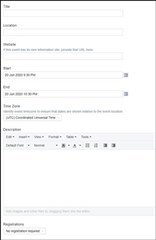
2. A event template form will appear. Add the details for your event including:
- Title: This should be descriptive and clear. You might choose to include "Webinar" or "In-Person" as a header in the title to indicate to members how to attend the event.
- Location: If the event is in-person, indicate the venue, city, and state. If the event is virtual, you can indicate that here.
- Website: Link to an external website if more information or registration details are available elsewhere.
- Enter the Start and End times for the event and be sure to update the timezone for the geography where the event is being held.
- Add a brief description of your event. Consider including speakers, topics of interest, or other details. If the information to join the call (Call-In numbers and links) are publicly available you can include those in the body of the description as well.
- Indicate whether Registration is required for the event in the drop down menu.
3. Add tags to your event to help others find it more easily. Please be sure to tag the event with the type of event you are hosting, for example: "webinar".
4. Once you click "save" your event will populate in the Upcoming Events Calendar
We hope this helps. If you have any feedback about this help page, feel free to drop us a line in the Ask a Question area!