VerintDemo
VerintDemo
  • User
  • Site
  • Search
  • User
  • Home
  • News Center
    News Center
    • Announcements
    • Leadership Blog
    • Company & Industry News
    • Featured News
    • Events
  • Communuties of Practice
    Communuties of Practice
    • Practice A**
    • Practice B
    • Practice C
  • Partners
    Partners
    • Partner News
      Partner News
      • Partner Summit
    • Partner A**
    • Invest Manager #1**
    • Partner C
    • Partner Portfolio
  • Product Development
    Product Development
    • Project X**
    • Product DX5763*
    • Project Z
    • FieldPulse
  • Community Help
  • Magnolia Gives Back
  • Demo
    Demo
    • Edgepack Demo
    • Additional Products
  • All Content
    All Content
    • All Articles
    • All Blog Posts
    • All Discussions & Questions
    • All Events
    • All Files
    • All Ideas
    • All Wikis
Community Help
Community Help
Help Documents Customize your Email Digest Setting
  • Q & A
  • How To Videos
  • Help Documents
  • Members
  • Mentions
  • Sub-Groups
  • Tags
  • More
  • Cancel
  • New
Community Help requires membership for participation - click to join
  • +Help Documents
  • Check Out This Video on How to Get Engaged in the Community
  • +Creating and Managing Content
  • +Embeddable
  • -Following & Managing Notifications
    • Customize your Email & Live Alert Notifications
    • Customize your Email Digest Setting
  • +Member Directory
  • +Profile

Customize your Email Digest Setting

Your Email Digest Settings can help summarize activity from your groups into a single email. Follow the instructions below to learn how to customize your settings.

1. Navigate to your profile settings by clicking your profile avatar (in the top-right corner of your screen) and then Settings
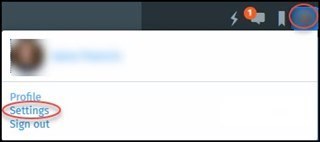
2. Click email digests at the top of the screen (you can also customize your email & live alert notifications using these same steps)

3. On the right side of your web page, select the frequency for which you would like to receive email digests for each of the groups you are subscribed to. For each, you can select:

  • not subscribed
  • daily
  • weekly


Note that you must first have subscribed to a group, forum, etc. before anything will appear in this list
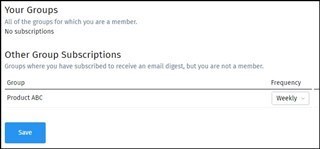
4. When you have selected your desired preferences, click Save at the bottom of the screen.

We hope this helps. If you have any feedback about this help page, feel free to drop us a line in the Ask a Question area!

  • Share
  • History
  • More
  • Cancel
Related
Recommended